How to Export Code from Framer in 2026 ?
Learn six practical ways to export code from Framer, including NoCodeExport, Code Components, browser tools, and manual rebuilding.
Framer is excellent for designing and publishing modern websites, but accessing portable website code is not always straightforward.
You may need the code to self-host a website, migrate to another platform, hand the project to a developer, or rebuild it using React or Next.js.
However, “getting code from Framer” can mean different things. You might only need to inspect an element, access a custom React component, export static HTML files, or recreate the complete website.
This guide explains the most practical options and their limitations.
Can You Export Code Directly From Framer?
Framer does not provide a standard workflow for downloading an entire visual project as a clean React, HTML, CSS, and JavaScript codebase.
Published Framer websites rely on platform-managed services such as hosting, rendering, asset optimization, fonts, and content delivery.
You can still access parts of the website using browser tools, Code Components, APIs, third-party exporters, or manual development.
Method | What You Get | Limitation |
|---|---|---|
View Page Source | Published HTML and scripts | Not usable as a clean standalone website |
Browser DevTools | Rendered HTML and styles | Missing organized assets and source structure |
Code Components | React or TypeScript component code | Only custom components, not the complete page |
Framer API | Project and CMS data | Does not generate rendered website code |
Export tool | HTML, CSS, JavaScript, and assets | Dynamic features may require adjustments |
Manual rebuild | Fully controlled development project | Requires more time and development work |
View Page Source
The fastest way to inspect a published Framer website is by opening its page source.
Right-click the website and select View Page Source. You can review:
Meta titles and descriptions
Open Graph information
Loaded scripts
Font references
Image and asset URLs
Structured data
However, the displayed code is generated for the published website. It is not the original Framer project or a clean development codebase.
Copying this HTML into another file will usually not recreate the complete website.
Best for: Checking metadata, scripts, and resources.
Use Browser DevTools
Browser DevTools lets you inspect the final page after it has been rendered.
Right-click any section and select Inspect to review:
HTML elements
Applied CSS
Responsive dimensions
Network requests
Image URLs
Fonts
JavaScript errors
DevTools is useful when you want to understand or recreate a specific section.
However, copying an element does not automatically include every asset, interaction, animation, breakpoint, or stylesheet used by the website.
Best for: Inspecting and rebuilding individual sections.
Access Framer Code Components
Framer Code Components are custom React components written inside the Framer project.
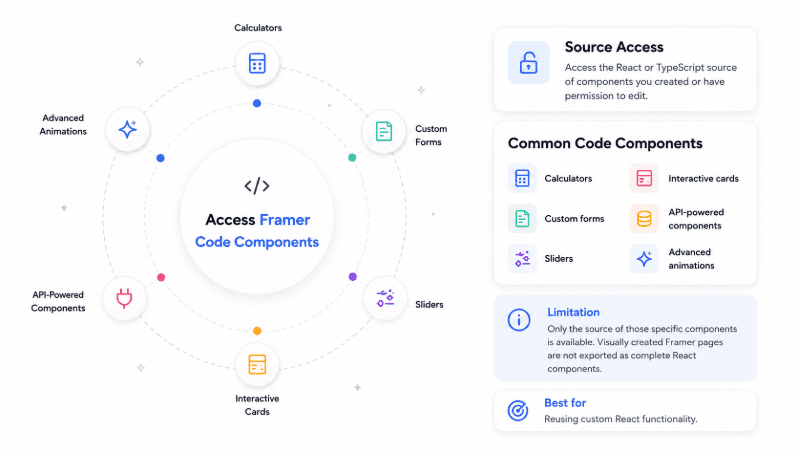
You can access the React or TypeScript source of components you created or have permission to edit. These may include:
Calculators
Custom forms
Sliders
Interactive cards
API-powered components
Advanced animations
The limitation is that Code Components only provide the source of those specific components. They do not export visually created Framer pages as complete React components.
Best for: Reusing custom React functionality.
Use Framer APIs
Framer provides APIs for working with project data programmatically.
Developers can use them to:
Read or update CMS content
Manage project information
Create plugins
Work with code files
Automate publishing workflows
Export structured data
Framer APIs are useful for CMS migrations and integrations, but they do not convert the complete website into downloadable HTML or React code.
Best for: Automation, plugins, CMS migration, and integrations.
Export Framer Code With NoCodeExport
NoCodeExport is a third-party tool that processes a published Framer website and generates portable static files.
It can provide files such as:
HTML pages
CSS styles
JavaScript
Images and media
Fonts or font references
SEO metadata
Internal page links
How to Export a Framer Website
Step 1: Prepare Your Website
Before exporting, publish the latest version of your Framer project and ensure everything is working correctly.
Verify that:
All pages are published
Navigation works properly
Desktop, tablet, and mobile layouts are responsive
SEO titles and descriptions are complete
CMS content is updated
Images and fonts load correctly
Note: The website must be publicly accessible. Unpublished or password-protected pages cannot be exported.
Step 2: Enter Your Website URL
Copy your published .framer.website URL (or custom domain) and paste it into the export tool.
You can choose to export:
A single page
Selected pages
The entire website
Most exports are completed in 60–90 seconds, depending on the site's size.
Step 3: Download the Export
Once processing is complete, download the exported package, which typically includes:
HTML pages
CSS and JavaScript files
Images and fonts
SEO metadata
Internal links
Step 4: Test Locally
Run the exported files on a local server and check:
Navigation and responsiveness
Forms and interactive elements
CMS pages
Metadata and custom scripts
Step 5: Deploy Anywhere
Upload the exported files to platforms like Netlify, Vercel, GitHub Pages, Cloudflare Pages, or any standard web hosting provider.
After deployment, reconnect services such as forms, analytics, redirects, and other third-party integrations.
What May Need Additional Work?
A static export may not fully preserve:
Framer-managed forms
Live CMS editing
Analytics
Complex Framer Motion animations
React-based Code Components
Authentication
Database functionality
Custom backend integrations
This method is most suitable for landing pages, portfolios, agency websites, documentation websites, and other mostly static projects.
Best for: Quickly converting a published Framer website into static files.
Rebuild the Website Manually
A manual rebuild gives you the most control.
A developer can recreate the Framer design using:
React
Next.js
Vue or Nuxt
Astro
Plain HTML, CSS, and JavaScript
A headless CMS
This is the better option when your website requires authentication, databases, dashboards, APIs, advanced forms, or complex application logic.
The main limitation is that every page, framer component, animation, and responsive layout must be recreated and tested.
Best for: Complex websites and production applications.
Method Comparison
The following comparison shows the practical difference between copying rendered browser output, using a dedicated exporter, and hiring a developer to rebuild the site.
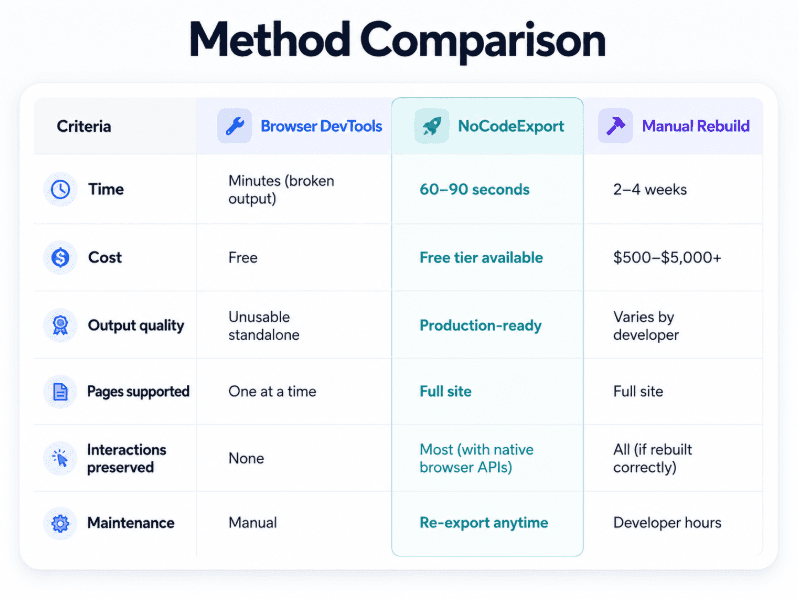
Browser DevTools is free and fast but does not produce a usable standalone website. NoCodeExport is faster for static website migration, while a manual rebuild provides better control for complex projects.
Which Method Should You Choose?
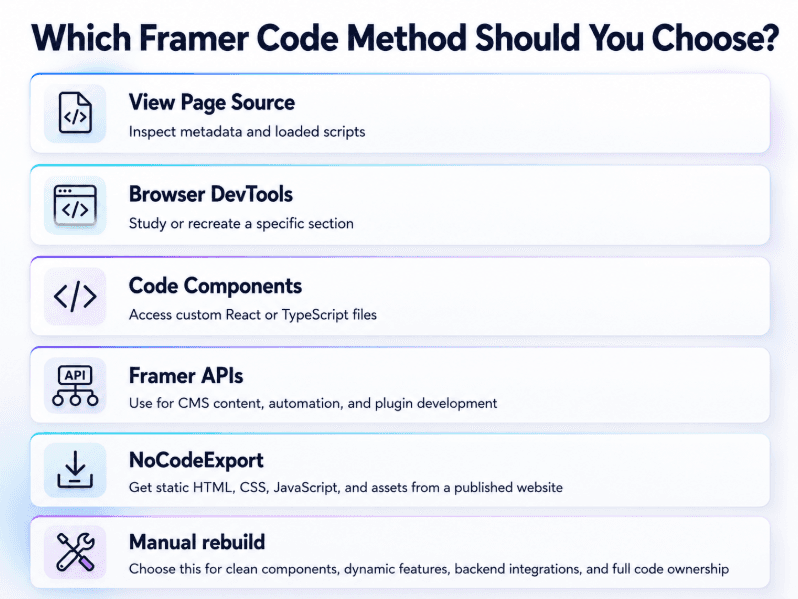
Choose View Page Source to inspect metadata and loaded scripts.
Choose Browser DevTools to study or recreate a specific section.
Choose Code Components when you need access to custom React or TypeScript files.
Choose Framer APIs for CMS content, automation, and plugin development.
Choose NoCodeExport when you need static HTML, CSS, JavaScript, and assets from a published website.
Choose a manual rebuild when you need clean components, dynamic features, backend integrations, or full ownership of the development codebase.
Checks Before Moving Away From Framer
Before changing hosting or cancelling your Framer plan, confirm that the replacement website includes:
All published pages
Images, fonts, and videos
CMS content
Forms and email notifications
SEO metadata
Canonical URLs
Redirects
Analytics scripts
Responsive layouts
Sitemap and robots settings
Custom domain configuration
Keep the original Framer website active until the exported or rebuilt version has been fully tested.
Conclusion
There is no single method that provides every type of Framer code.
Browser tools are useful for inspection, Code Components provide access to custom React files, and Framer APIs help with content and automation.
For static marketing websites, NoCodeExport offers a faster way to generate portable HTML, CSS, JavaScript, and assets. For websites with authentication, databases, dashboards, or complex interactions, rebuilding the project in React, Next.js, or another framework is usually the better long-term approach.
The right method depends on whether your priority is speed, self-hosting, customization, or complete development control.
Frequently Asked Questions
Can I export a Framer website as HTML?
Framer does not provide a standard complete HTML export workflow. A third-party tool can process the published website and generate static HTML files.
Can I copy Framer code from Browser DevTools?
You can copy rendered HTML and inspect CSS, but this will not automatically include all assets, scripts, interactions, and responsive behaviour.
Can I get React code from Framer?
You can access React or TypeScript source for custom Code Components. Visually designed pages are not automatically converted into clean React components.
Does NoCodeExport export an entire Framer website?
It supports single-page and full-site exports from publicly accessible Framer websites. The exported version should still be tested for forms, animations, CMS content, and custom components.
Will Framer animations work after export?
Basic hover effects and simple interactions may work. Complex Framer Motion animations or React-based interactions may require manual recreation.
What happens to Framer CMS content?
A static exporter usually captures the content available at the time of export. It does not provide the same live content-editing workflow as Framer CMS.
Will Framer forms work after export?
Framer-managed forms may need to be replaced with another form service, serverless function, or custom backend.
Is exporting better than rebuilding?
Exporting is better for static marketing websites and portfolios. Rebuilding is better for applications requiring authentication, databases, APIs, or advanced interactions.


